
IP Camera Groups
IP Cameras can be organized into groups. For example, if multiple cameras all watch the same room, they can be grouped together to make that room’s security easier to control.
An administrator can create and manage IP Camera Groups using the IP Camera Groups feature.
Feature Path: Administration/Enterprise Configuration/IP Cameras/IP Camera Groups
There is no limit to the amount of camera groups you can create or the number of cameras you can assign to them. You may also assign the same camera to multiple groups. To create a camera group, only a unique name is required.
The IP Camera Groups feature has three panes. The IP Camera Groups pane lists IP camera groups. The Details pane lists the properties of a selected group. The Check to Assign to Group pane lists IP cameras, with a check box to assign them to the selected group.
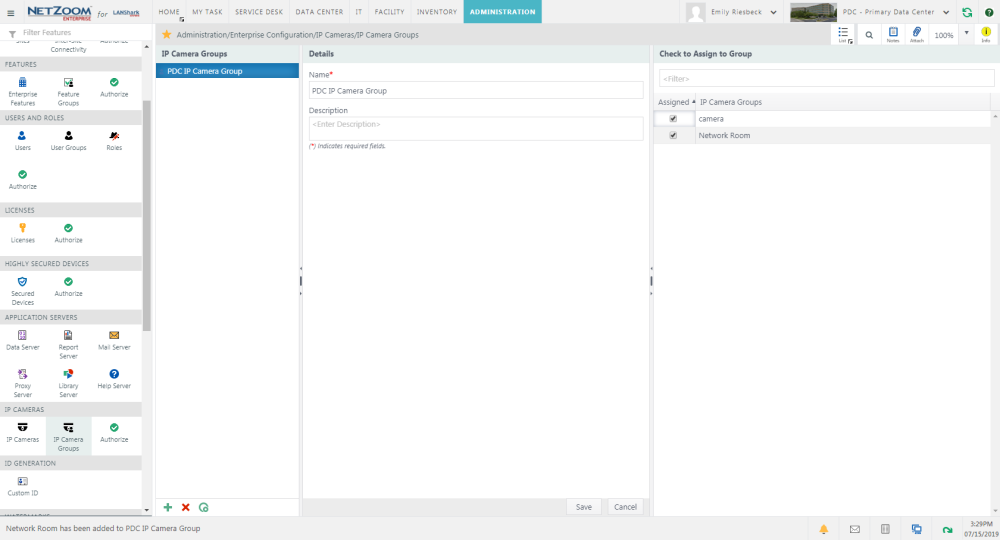
Creating an IP Camera Group
- To create an IP Camera Group, click
 [Create Group] at the bottom of the IP Camera Groups pane. A blank form will appear in the Details pane.
 - Fill in a name for the group. A description is optional.
- Click the [SAVE] button. The Group will be saved and added to the IP Camera Groups pane.
Assigning IP Cameras to a Group
- To assign IP cameras to a group, select the group you want to assign cameras to in the IP Camera Groups pane.
- In the Check to Assign to Group pane, check [x] the cameras you want to assign to the group. The checked cameras will be assigned to the selected group.
Editing an IP Camera Group
- To edit an IP Camera group, select the group you want to assign cameras to in the IP Camera Groups pane. That group’s properties will appear in the Details pane.
- Alter any details you want to change in the Details pane.
- Click the [SAVE] button to save your changes.
Deleting an IP Camera Group
- To delete an IP Camera Group, select the group you want to delete in the IP Camera Groups pane.
- Click
 [Delete Group]. The group will be deleted and removed from the IP Camera Groups pane.
Available Quick Actions
Last Updated: Monday, January 25, 2021
NetZoom, Inc.